Step by step instructions on how to complete the installation for the following products:
Microsoft Office 365 (All versions)
Microsoft Office 2013/2016 Home & Student, Home & Business, or Professional
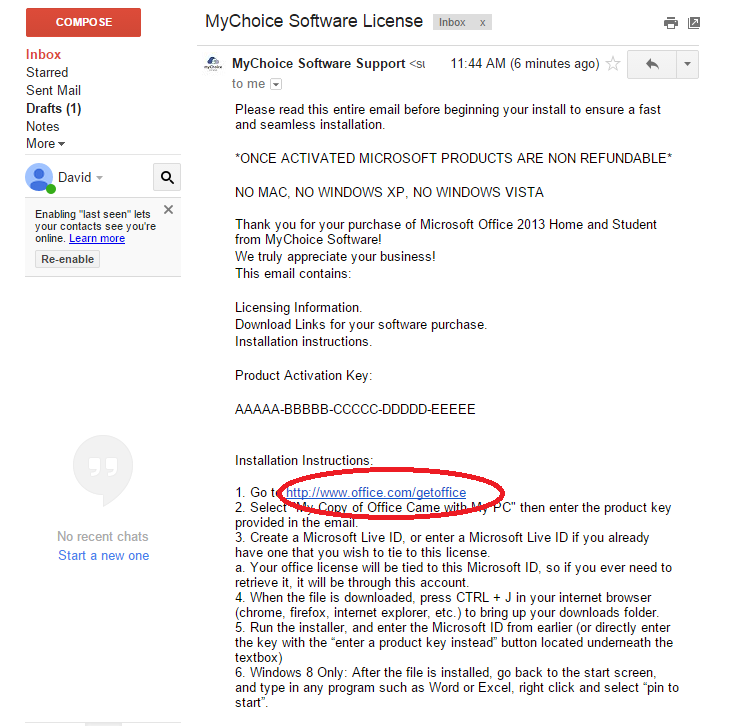
Step 1 Proceed to your email. Open the message titled 'Tech Supply Shop License'. Click on the link provided.
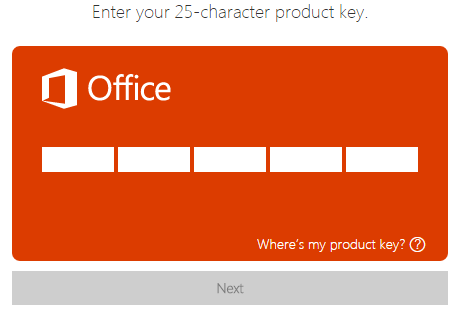
Step 2 Retrieve Product key from your email. Enter the Product key into blank spaces provided.
Step 3 You will be prompted to login to a Microsoft Live ID/ Account. If you have one, sign in. If not, proceed to the link 'Sign up now'. (See below in circled red)
Step 4 You will be brought to a main account page. Click the link to begin the download process.
Step 5 Click save and the file will begin downloading. (Depending on your computer's settings, the file may run automatically. If not, navigate to your download folder to run the Installer.)
Step 6 If you see an orange box pop up... ...you have begun the install of your office software. Follow the steps. You will be prompted to enter your Microsoft Live ID/Account (that was created in step 3 / refer to step 3).
Once you complete this process, you will be all set.
Congratulations on your purchase of Microsoft Office!
If you have any additional questions give us a call @ 949-520-1876 x2.
 American Owned and Operated